

Best practices
- Verify that you have the correct API name of any fields you use in your iAPI call. You can run the List all metadata fields call in a browser window or an API client to retrieve the API names of fields.
- Test your call before running it against your entire CSV. You can:
- Validate that iAPI recognizes your data.
- Run your call against one row at a time to confirm iAPI processes your data as expected.
- Enter your DataTable GET call in a browser address bar using values from one row of your CSV. Press enter to run the call and you’ll receive a response immediately.
- When you run calls on large data sets, adjust the indexing priority. Ensuring indexing is handled in the background or is sent to the low-priority queue can help speed up call processing and prevent the updates from filling up the standard indexing queue, which could impact system performance.
- Add &IndexInBackground=1 to the end of a call to index changes in the background.
- Add &IndexingPrioroity=Low to the end of a call to send changes to the low-priority queue.
Troubleshooting
If iAPI is not working as expected, the first thing to do is to follow the steps to download iAPI and verify that your iAPI application is up to date. If you’re running the latest version and still encountering issues, try the troubleshooting steps below.
Call issues
A call with a sub-call fails
Sub-calls can use only the READ function. Test your sub-call before adding it to a call. If the sub-call is successful on its own, then it is not the issue. Verify that the rest of the call is correct.
API calls are processed very slowly
Add your user account to the allow list to prevent Orange Logic from slowing your activity.
Keep in mind that some calls can take longer to process than others. For example, CREATE calls take longer to process than UPDATE calls, and updates to simple fields (such as text and date fields) are usually faster than updates to more complex fields (such as multi-valued or authority list fields). Servers with few tasks will process calls faster than servers that are running many tasks simultaneously. Each of these factors has a greater impact on call speed than internet speed does.
All calls are in the success log, but no records were created
Verify that the value in the base URL field is correct.
Data import issues
Comma-separated tag values are imported as a single tag
Commas and semicolons are not supported as multi-valued field delimiters. Tags must be separated with a pipe ( | ).
- Incorrect:
- cone, dessert, ice cream, treat, waffle
- cone; dessert; ice cream; treat; waffle
- Correct:
- cone | dessert | ice cream | treat | waffle
Multiple columns in a CSV file contain information for a single metadata field
For example, you have multiple columns for asset tags. (Let’s say these columns are named “Tag_1,” Tag_2,” etc.) All of the data in these columns should update the CoreField.Keywords field.
When iAPI runs, data from only one of the tag columns is imported.
Solution: Your call must include one statement for each column. Each statement must use either the += or the ++= operator, which add a value to a multi-valued field.
For example, you might use a call like this:
/API/DataTable/V2.2/Documents.Image.Product-Photo:Update?CoreField.Identifier=[ID]&CoreField.Keywords+=[Tag_1]&CoreField.Keywords+=[Tag_2]&CoreField.Keywords+=[Tag_3]
A successful call populated a field with the text “[column header]”
Verify that your call is written correctly and accurately refers to each header in your CSV file.
This issue can occur when a CSV file doesn’t have a header, or when the file has a header that iAPI doesn’t recognize. Use the Get fields from file button to ensure the placeholders in your call exactly match the values iAPI recognizes in your CSV.
Imported data doesn’t appear as expected
For example, characters that are not used in the standard Latin-script alphabet might be imported as symbols, or special characters (!@#$%^&*) might not be rendered correctly.
Solution: Run the call again with a different encoding method. For example, if you processed a CSV file with ANSI (Windows Western) and the results did not match the CSV file, try again with UTF-8.
Errors
“Access to the path is denied.”
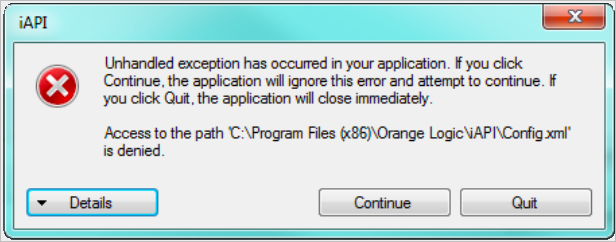
Access denied error
Run iAPI as an Administrator. Right-click the iAPI icon and select “Run as administrator.”
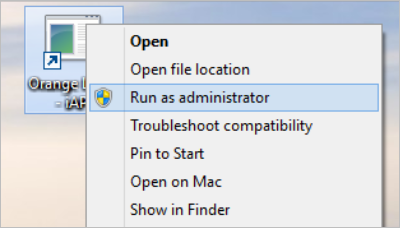
Run as Administrator
“MSVCR100.dll is missing.”
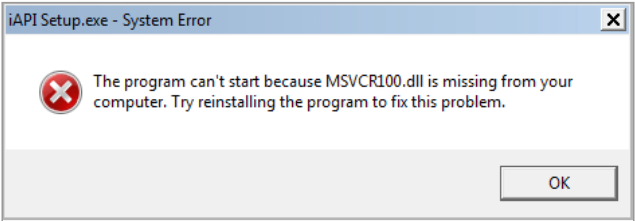
Missing .dll error
Download the latest version of the Microsoft Visual C++ Redistributable package from the Microsoft Download Center. Install it, and then relaunch iAPI.
Connection is not private
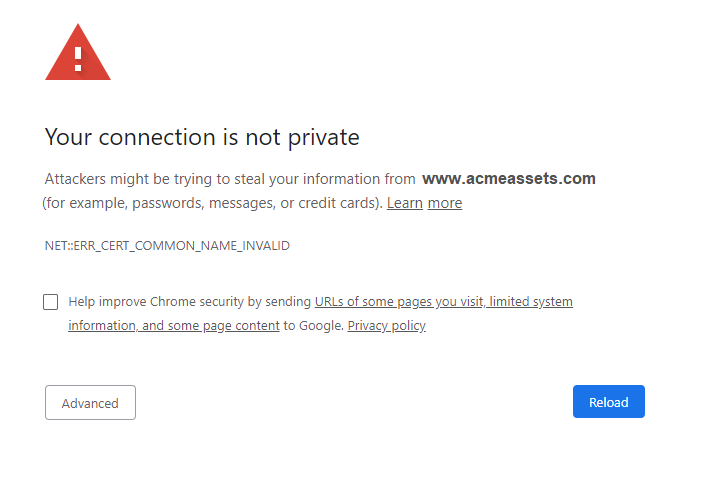
Privacy error
Close iAPI and open the application again. This error can occur when iAPI has been open for several hours and you try to log in with SSO.
“API is not available in test mode.”
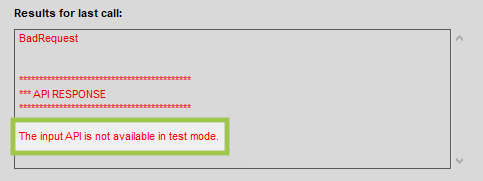
Test mode error
Verify that you are using the most recent version of a DataTable call.
HTTP status “Bad Request”
Find details about why the call couldn’t be processed, and suggested solutions, in the last column of the failure log.
509 Error
Add your user account to the allow list to prevent Orange Logic from blocking your activity. Your session might be blocked due to the volume of API calls you have made.