Call APIs in bulk in Orange Logic’s desktop application
iAPI is Orange Logic’s desktop application for performing iterative API calls on a CSV file of data. iAPI allows you to create, import, update, and delete database objects, such as assets, folders, and user accounts, and their associated metadata.
Here is a typical iAPI workflow:
You have a CSV of existing data. You can create this CSV in a variety of ways, including:
Downloading data from Orange Logic using the Run Report or Table View features.
Downloading data from a legacy DAM or other external system.
You update the data in the CSV. The CSV must include:
In general, if you have a CSV file and your goal is to edit or update data, you can use iAPI. If you need to retrieve information (by running Search calls for example) or if you need to make system-level changes (such as activating a feature), you will likely need a full API client.
Logs
iAPI creates two logs as it runs: a success log and a failure log. These logs are independent from the application run logs you can access in your Orange Logic environment.
iAPI logs contain information about the import status of the data sent via iAPI. If you stop your call and start again, or if you run multiple calls on a single CSV, iAPI continues to add rows to the existing log files.
In the case that your call fails to make all the changes you expect, you can review the failure log, make revisions to correct the issue, and run your call again on the failure log CSV. This process allows you to run a second call on only the data that was not processed as expected instead of processing the entire data set again.
An iAPI failure log showing assets that couldn’t be found
Administrator rights on your Windows machine or virtual environment.
Mac
macOS 13 Ventura or later
Apple Silicon or Intel
Linux
A 64-bit desktop distribution
AppImage needs FUSE 2
x64 CPU
File requirements
The CSV files you use in iAPI must:
Use the .csv extension. For example, if you create a file with Microsoft Excel, the default file extension is .xlsx. You must save the file as a CSV before you can use it in iAPI.
The column names in the header row cannot include special characters (!@#$%^&*).
We recommend using column names that match the names of the corresponding fields as they appear in the Orange Logic interface.
Not include a footer row.
Include a column that uniquely identifies each asset or object. This is typically the unique identifier or record ID. Many CSVs also include a legacy ID column that uniquely identifies the record in an external system. If you are migrating from one platform to another or syncing data between systems, it is helpful to map the assets or objects by including an identifier for both locations.
Use the pipe ( | ) as a delimiter when multiple values are included in a single cell.
In addition, when cells use quotation marks as text qualifiers, you must use straight (or “dumb”), not curly (or “smart”), quotation marks. iAPI supports only the Unicode Quotation Mark (code point U+0022). It does not support the Unicode Right Double Quotation Mark (code point U-201D).
File limitations
iAPI is designed to handle large batches of data, such as a CSV file with thousands of rows of data. However, while you can use iAPI to ingest CSV files of any size, some spreadsheet applications, such as Microsoft Excel, do not handle extremely large files well. For example, it can be difficult to search or filter in a very large file. Therefore, we recommend that you split your data into separate CSV files of no more than 50,000 rows each. Limiting your files to this size makes it easier to analyze the data and work in the CSVs.
💡
Tips
The CSV Splitter tool makes it easy to split large CSVs into smaller ones.
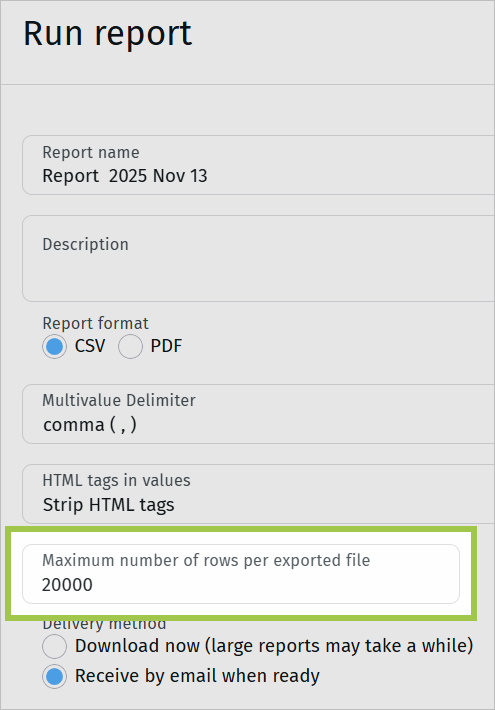
If you’re using the Run Report feature, you can set a maximum number of rows for a CSV. Your report will be split into multiple files as needed.
Maximum number of rows per report CSV
Download and Install iAPI
Log in to your Orange Logic environment.
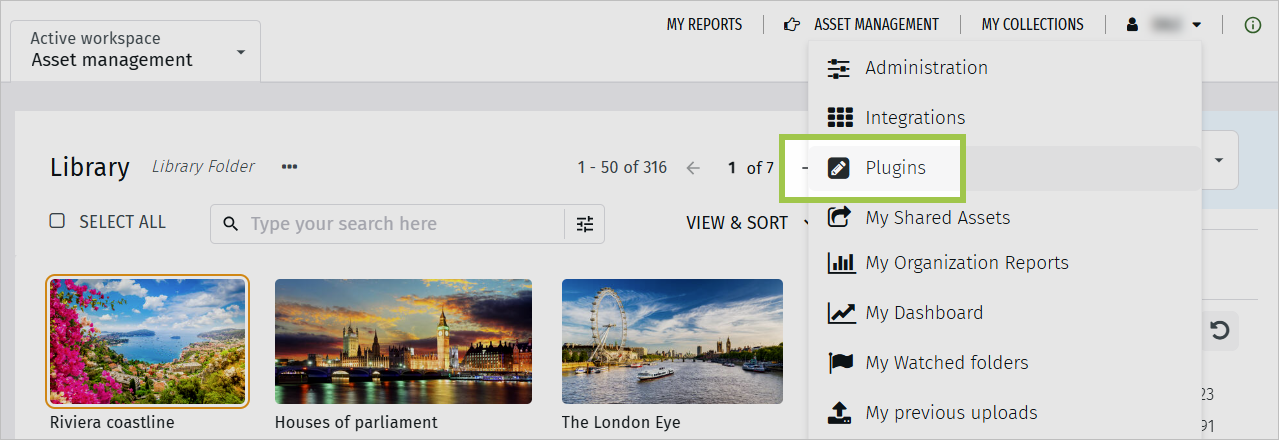
Open the user menu and select Plugins.
User menu > Plugins
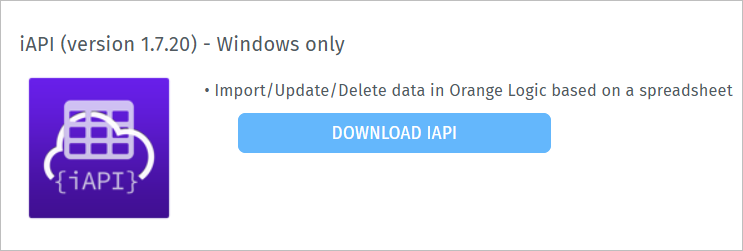
Click Download iAPI. The application downloads automatically.
iAPI plugin
Open the downloaded file to launch the setup wizard. Then, follow the steps to install iAPI.
iAPI is now installed and you can open it just like any other application.