You can use multiple instances of Orange Logic’s content browser in various integrations, and you can customize each instance. Orange Logic administrators can configure global settings that determine the available assets in all content browsers. Then, you can customize each content browser to fit its specific use case.
Example: Configure the Content Browser SDK to work for multiple integrations
Let’s say your organization uses the content browser in two custom integrations: the video-hosting platform Wistia and the CMS Sanity.io.
Here are your organization’s global requirements:
The content browser can only display assets with the “Public” Visibility Class to ensure users only use approved assets.
Here are the requirements for the Wistia integration:
Users can only browse videos.
Users can see the tags and file size of each video.
Here are the requirements for the Sanity.io integration:
Users can find images, videos, PDFs, and PPTX files.
Users cannot find audio files.
Based on these requirements, an OrangeDAM administrator can configure the following global settings:
Users can only see assets with the “Public” Visibility Class.
Users can only see assets that belong to the “Images,” “Videos,” and “Others” Asset Types. The “Others” Asset Type gives users access to PDF and PPTX files.
Then, you can configure the Wistia content browser to:
Show only “Video” assets.
Show tags and file size for each asset.
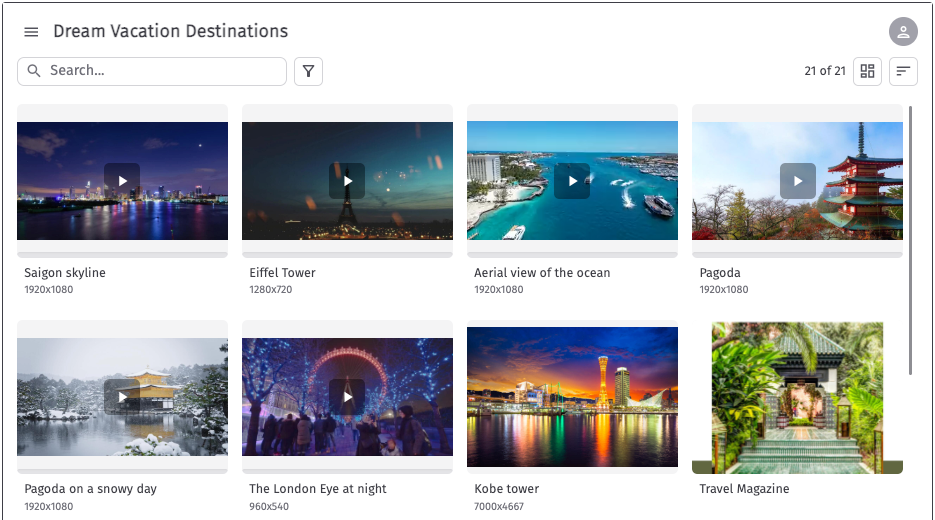
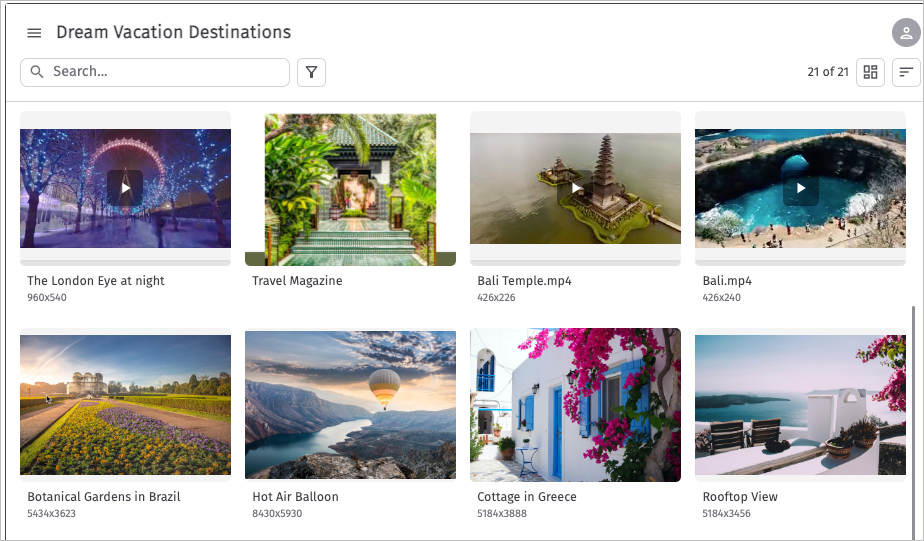
Content browser for Wistia - Shows only Videos; includes tags and file size
The Sanity.io content browser uses the global settings.
Content browser for Sanity.io - Includes Videos, Images, and Others
Configure the global content browser settings in OrangeDAM
OrangeDAM admins can update most of these settings in the integrations marketplace. These settings determine how the content browser works, including the available Asset Types and Visibility Classes, in all instances of the content browser used by your organization. These settings also apply to out-of-the-box integrations provided by Orange Logic that use the Orange Logic Content Browser SDK, such as Salesforce and Contentful.
Open the content browser with the following function:
Global settings that apply to all content browsers
Apply transformations. Activate transformations in the Orange Logic platform to allow users to apply transformations to images in all content browser instances.
Orange Logic admins can activate transformations in the Get Link advanced configuration.
Configure the returned metadata. Determine which metadata is returned with the metadata sub-field of the attribute OnAssetSelected.
ℹ️
Note
You can use another setting to configure additional metadata for each of your organization’s content browsers.
Collections (V2; Beta) browser side panel behavior. The browser side panel can display a collections section. You can choose the Collections subtypes available in this section.
Customizations an Orange Logic specialist can make
Submit a support request for an Orange Logic specialist to configure any of the following settings:
Limit asset availability based on visibility class. For example, an Orange Logic specialist can configure the content browser to display only images with the Visibility Class “Public.”
Change the structure of asset URLs. For example, you could use IIIF image adjustments.
Change the returned asset format. You can choose which proxy formats are available to your users. Then, they can choose the format they want when they select an asset.
Global settings to configure individual content browser options
These settings limit what is available for each instance of the content browser. Then, you can customize each content browser within these limits.
Determine the Asset Types content browsers can use. Restrict the Asset Types available in your organization’s content browsers. By default, the content browser all Asset Types (Images, Videos, Audio, and Others) are available.
Limit assets with available representative image. Choose the Asset Subtypes that can show a representative image as their preview and allow users to download the representative image.
Customize individual content browsers
In addition to global settings, you can configure each instance of the content browser to work for a specific use case.
⚠️
Caution
Do not use these configurations to restrict asset availability.
Some of these settings limit asset availability in the Content Browser SDK interface. For example, every Asset Type might be available globally, but you can configure a specific content browser to only show Images.
However, these configurations are only applied to the user interface. An authorized user might still be able to access assets that do not appear in the content browser via a URL, third-party platform, or API.
Apply configurations
Open the content browser with the following function:
window.OrangeDAMContentBrowser.open(
	// add configurations here
);
Then, pass configurations to the content browser and control its behavior by adjusting these attributes:
allowFavorites: Allow users to add assets to their favorites and access their favorites folder.
Required: No
Default value: false
allowTracking: Whether users can add UTM tracking parameters to generated links.
Required: No
Default value: true
availableDocTypes: The callback when an error occurs. The end user will receive an error message and an error object.
Required: No
Default value: null
Example:
[
  "Images",
  "Videos",
  ]
availableRepresentativeSubtypes: The asset types or subtypes with image representatives users can access. By default, users can only access representatives of assets that belong to the “Other” subtype. Image representatives are only available for asset types and subtypes if they are also available in the global settings. This field is case sensitive.
Required: Yes
Default value: null
Example: Representatives are displayed for both “Other” and “Supporting file” asset subtypes.
["Other", "Supporting file"]
baseUrl: If specified, the base URL pre-filled on the log in screen. Otherwise, the URL on the login page will be empty.
Required: No
Default value: null
Example: https://mangovations.orangelogic.com
containerId: The ID of the container that the plugin attaches to. If undefined, the plugin appears as a popup.
Required: No
Default value: null
Example: containerId: "react-app-root"
ctaText: The text on the button to insert an asset into the platform or obtain a link.
Required: No
Default value: "Insert"
Example: “Open in new tab”
displayInfo: Specifies whether metadata appears in the asset preview. The following fields are available: title, dimension, file size, and tags. Use true to show a field and false to hide it.
extraFields: You can configure the payload associated with each selected asset to include extra Orange Logic metadata fields via this attribute. Use Orange Logic API names separated by commas.
True: The content browser remains open after an asset is selected.
False: The content browser closes after an asset is selected.
Required: No
Default value: true
pluginName: The name of the browser plugin that appears on the login screen.
Required: no
Default value: “OrangeDAM Content Browser”
publicApplicationName: The public name of the Orange Logic application.
Required: No
Default value: null
showCollections: Whether Collections (V2; Beta) appear in the content browser as a subsection in the browser side panel.
True: Collections appear.
False: Collections do not appear.
Required: no
Default value: true
showVersions: Allows a user to access an asset’s previous versions.
Required: no
Defaultvalue: false
useSession: The session ID the asset browser uses.
Required: no
Default value: null
Example: 1R037N43S2
Use the content browser with APIs
By default, the Content Browser SDK does not return any metadata fields. However, you can configure the content browser to return the Orange Logic SystemID or RecordID of selected assets. Then, you can use these identifiers with Orange Logic’s APIs and tools to do even more with those assets. For example, you could update the selected asset’s metadata within Orange Logic to reflect its use in the external application.