

Placeholders
You can use placeholders in your script to reference the target asset and the current user. To add placeholders, enter an opening bracket ([) and select a placeholder from the list.
Asset information
Most asset placeholders use the format Document.[Field name]. Some of the most common placeholders for the Core fields of a target asset include:
- Document.Title
- Document.CaptionLong (the Description field)
- Document.Copyright
- Document.FileCreateDate
- Document.FileEditDate
- Document.FileImportDate
- Document.FileSize
- Document.EmbargoDate (the Embargo Date field)
- Document.Identifier (the unique ID)
- Document.Purpose (the Visibility Class)
- Document.IIIFResourceType (the IIIF Resource Type field)
- Document.Lockdown (Assets in lockdown cannot be shared, and all existing shares are revoked.)
- Document.OriginalFileName
- Document.WorkflowStatus
- Document.DocSubType (the asset subtype)
Additional asset information placeholders you might find useful include:
- Document.TitleWithFallback (the assets title or, if there is none, the asset’s original file name)
- Document.Embargo (a boolean value indicating whether the asset is under embargo)
- Document.Keywords (the asset’s tags)
- Document.RecordID (the asset’s Record ID)
- Document.EditDate (the Last Modified date)
Feature documentationOrange Logic users with a Link account can go to the following articles to learn more about these topics:
User information
Some of the most common placeholders for user information are listed below. These placeholders pull information from the account of the user who triggered the automation.
For example, when a user clicks a button or saves an asset to trigger an automation, the Sender.CoreField.First_Name placeholder pulls in the value of the First name field in the user’s contact record.
- Sender.CoreField.First_Name
- Sender.CoreField.Last_Name
- Sender.CoreField.OrganisationName
- Sender.CoreField.Contact_type (the type of account, such as Staff, Source, etc.)
- Sender.CoreField.Department
- Sender.CoreField.DisplayName
- Sender.CoreField.Identifier
- Sender.CoreField.LoginID
- Sender.CoreField.MustResetPassword
- Sender.CoreField.CreateDate
- Sender.CoreField.EditDate
- Sender.CoreField.EditLocation
- Sender.RecordID (the encrypted ID of the user’s account)
Feature documentationOrange Logic users with a Link account can go to the following articles to learn more about these topics:
Workflow variables
You can use the Workflow Design Tool to create workflows that automate tasks, manage project and asset life cycles, and build custom integrations. When building workflows, you can create variables to pass values from one workflow element to another and create conditional paths. Variables can be set on all workflow elements (triggers, actions, statuses, decisions, etc.). When you write a script in the Call External API development environment, you can reference any variable that was created in that workflow.
Add workflow variables to a Call External API script
To add a workflow variable to your script, enter an opening bracket inside single or double quotation marks ( “[“ ) and type "Variable" to list that workflow’s existing variables. Select a variable to add it to your script.
Alternatively, you can type [Variables.variable name] to add the variable. Variable names are case insensitive and can include spaces.
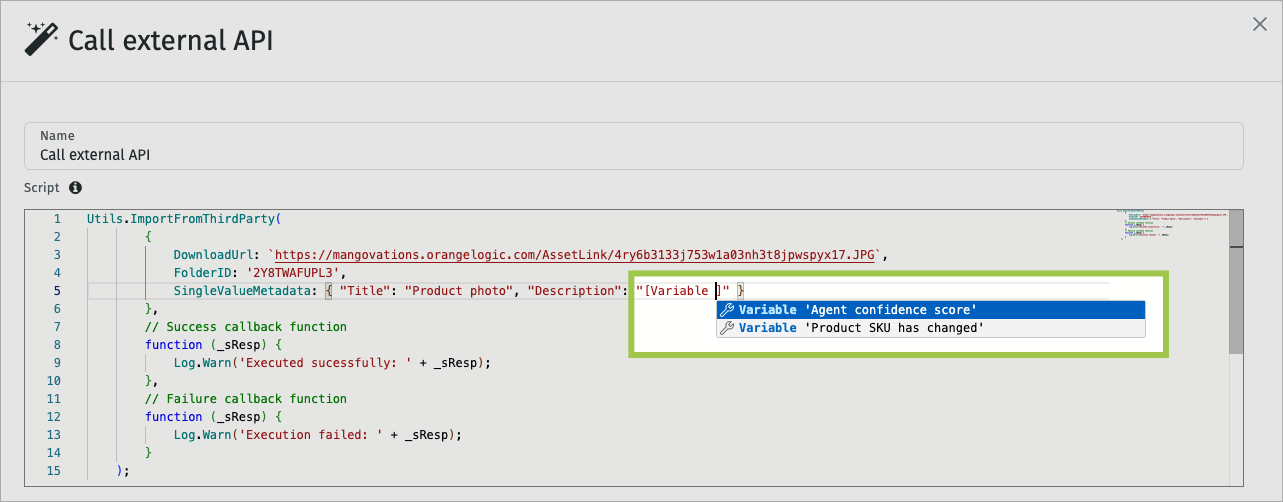
Add a workflow variable to a “Call external API” script
Create variables from the response
When writing the script, configure the sample response in the bottom window as a JSON object. Then, use the Utils.SetScriptOutput function to set the response in the script template.
You can designate the script’s response as a workflow variable with this syntax: var response =. When you add the response as a variable in the script, the variable will appear in the Workflow Design Tool interface, so you can reference it in later workflow steps if needed.
The sample below imports an asset and its metadata to the Orange Logic platform. The asset’s title is “Product photo,” and its description is the AI agent’s confidence score, which is a variable pulled from the workflow. The response is configured to list the asset’s title and the success status. The response will be available as a variable in the Workflow Design Tool, so you can build a conditional path based on the response value. For example, if the response is anything other than successful, you might want to notify a team to review the asset.
Utils.ImportFromThirdParty(
    {
        DownloadURL: 'https://mangovations.orangelogic.com/AssetLink/4ry6b3133j753w1a03nh3t8jpwspyx17.JPG'
	FolderID: '2Y8TWAFUPL3'
	SingleValueMetadata: { "Title": "Product photo", "Description": "[Variables.Agent confidence score]" }
    },
    // Success callback function
    function (_sResp) {
        var oResp = JSON.parse(_sResp);

        Utils.SetScriptOutput(oResp);

        Log.Warn('Executed successfully: ' + _sResp);
    };
//Failure callback function
function (_sResp) {
    Log.Warn('Execution failed: ' + _sResp);
}
)
Note
- Workflow variables are available beginning in Orange Logic Ottawa.
- Orange Logic users with a Link account can go to the Workflow variables article to learn more.
Updated 3 months ago