

Impersonate users to test Content Browser SDK access
-
Go to the content browser.
-
Log out if needed.
-
Enter your Orange Logic URL.
-
Click Connect.
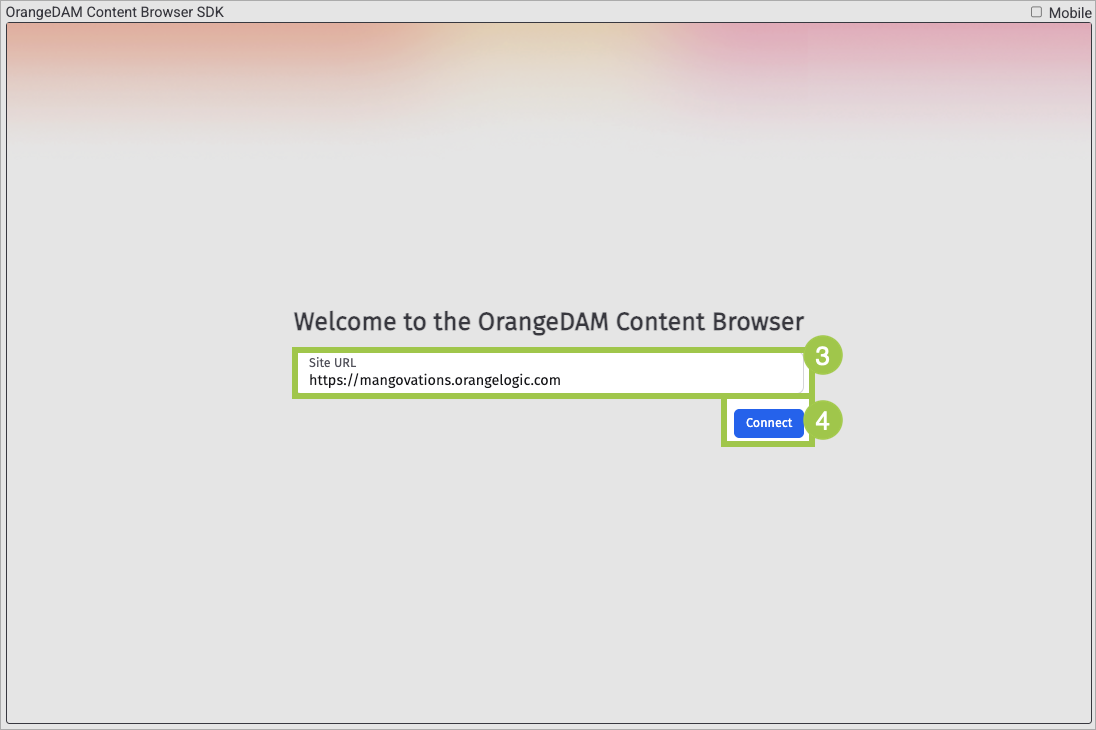
Content browser login screen
-
The Orange Logic login page opens in a new tab. Log in with your credentials.
-
The authorization page opens. Open the user menu, click Impersonate Another User, and select the person you'll impersonate.
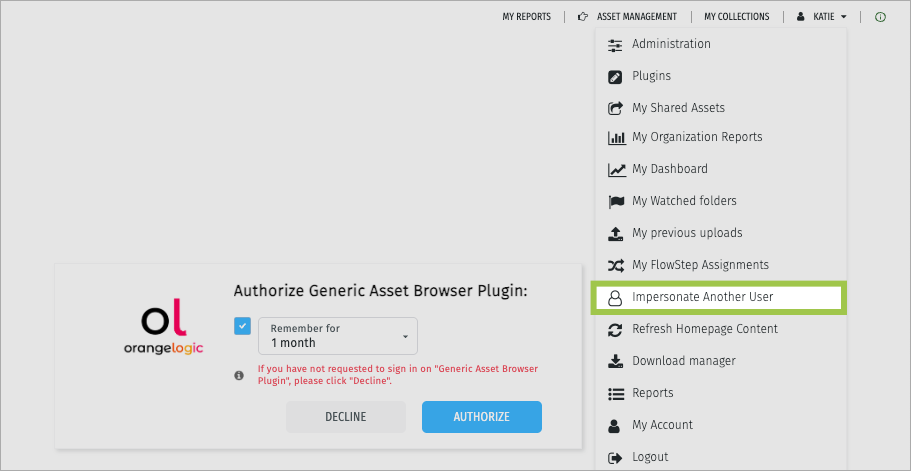
Impersonate another user
-
Click Authorize.
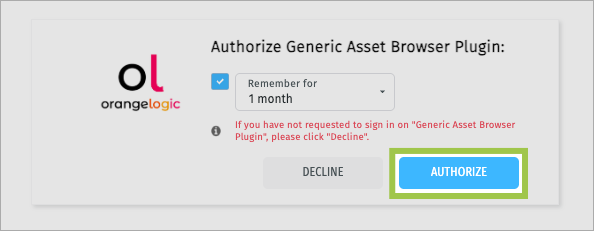
Authorize the content browser
To stop impersonating, log out of the content browser.
Use the content browser with APIs
By default, the Content Browser SDK does not return any metadata fields. However, you can configure the content browser to return the Orange Logic SystemID or RecordID of selected assets. Then, you can use these identifiers with Orange Logic’s APIs and tools to do even more with those assets. For example, you could update the selected asset’s metadata within Orange Logic to reflect its use in the external application.
Content Browser SDK examples
The content browser is extremely flexible. Use these examples as inspiration.
Orange Logic’s demo page
You can try the Content Browser SDK for yourself. Go to our demo page.
-
Click “Load config” to load the browser.
-
Log in to your organization’s Orange Logic environment.
-
Adjust the instance-specific configurations in the “Config” box to see how the browser interface changes.
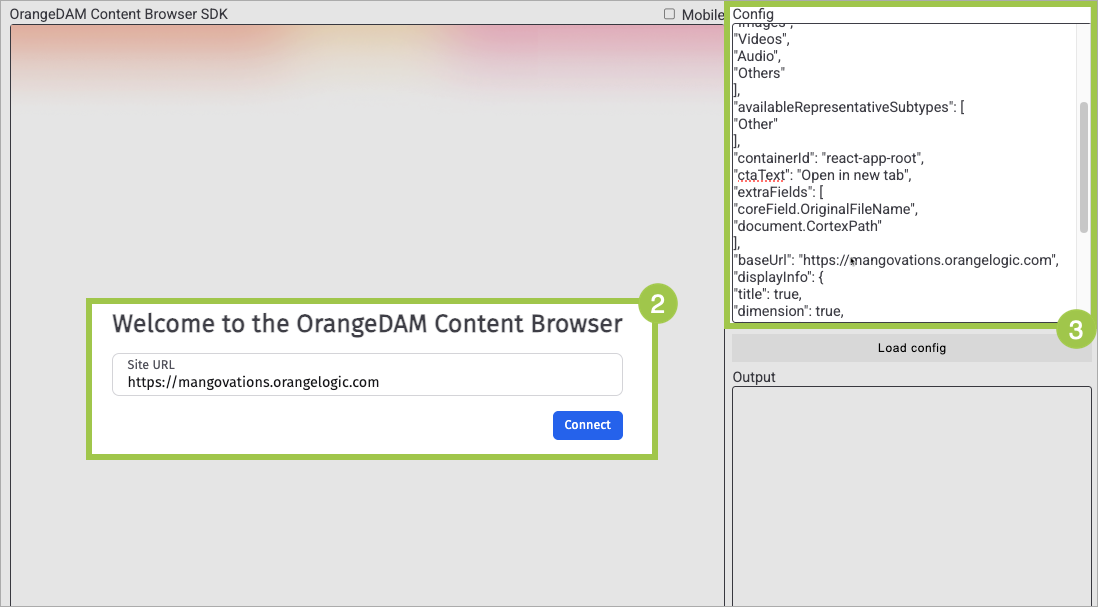
Content Browser SDK demo
For example, by default file size and tags do not appear on the previews of assets in the content browser.
However, you can update the displayInfo attribute from its default:
"displayInfo": {
"title": true,
"dimension": true,
"fileSize": false,
"tags": false
}
to:
"displayInfo": {
"title": true,
"dimension": true,
"fileSize": true,
"tags": true
}
So that file size and tags appear on the preview of each asset:
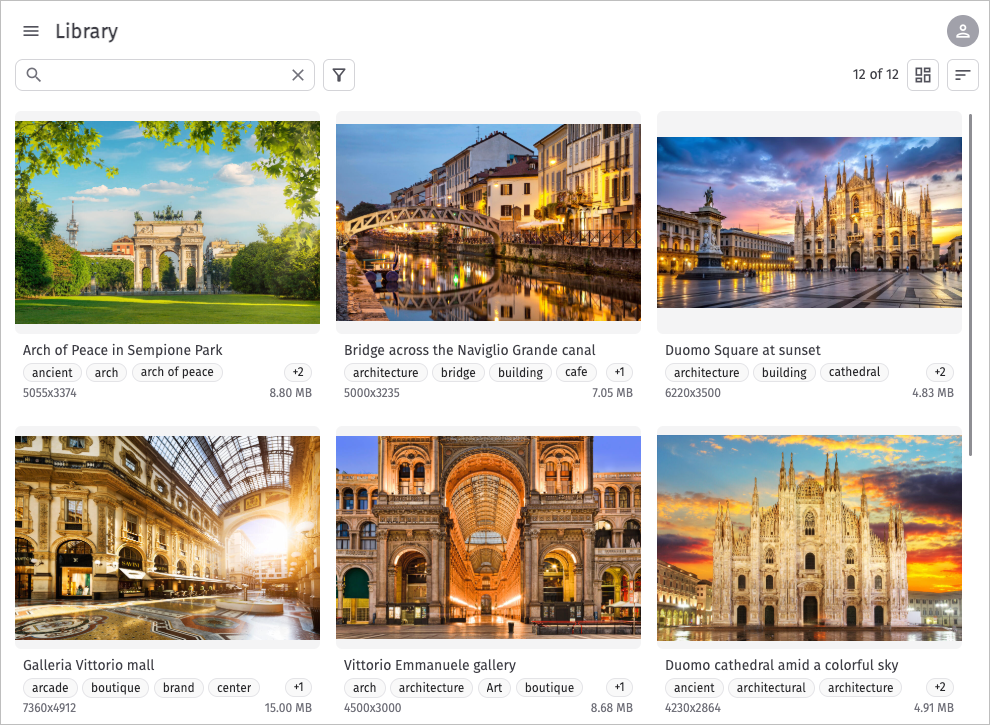
Content browser demo configured to include file size and tags in each asset’s preview.
Updated 2 months ago